What you’ll build: something that reads every new email as it arrives, works out what kind of email it is, files it under the right label, and — when a reply is needed — writes a draft and leaves it for you to approve. Time: about an hour for your first one. Cost: a few cents a month in AI usage. Coding required: none.
Most inbox advice tells you to write better filters. Filters are fine until someone writes “can you send me the bill?” instead of using the word invoice, and your carefully built rule quietly does nothing.
This guide builds the thing that handles that case: a small automation that reads each email the way a person would, decides what it’s about, and sorts it. I run a system like this on my own mail. It is genuinely useful — and it is also the kind of build where every tutorial shows you the version that works and none of them show you the three things that break first. Those are in here too.
No prior experience is assumed. The next section explains every term used in the rest of the article, so if you’ve never opened an automation tool in your life, start there.
First, the words you’ll need
Six terms cover almost everything. Skip ahead if you already know them.
- n8n (say “n-eight-n”) is an automation tool. You connect boxes together on a canvas, and it does a job for you on a schedule or whenever something happens. Think of it as a flowchart that actually runs. It’s free to use, and you can either let n8n host it for you or run it on your own server.
- A workflow is one of those flowcharts. n8n’s own wording: “a collection of nodes that automate a process.”
- A node is one box in the chart — one step. “Get new emails” is a node. “Add a label” is a node.
- A trigger is the first box: the thing that starts the workflow running. Ours will be “a new email arrived.”
- An LLM (large language model) is the AI behind tools like ChatGPT. For our purposes it’s a service you send text to, that sends text back. You’ll pay fractions of a cent per email for it.
- An AI agent is an LLM that’s been given tools and allowed to decide which one to use. n8n defines agents as systems “capable of responding to requests, making decisions, and performing real-world tasks.”
And triage, the word in the title, is borrowed from hospitals: sort what arrives by urgency and type, so the important things get attention first. That’s the whole idea. We’re not automating your replies. We’re automating the sorting.
Why not just use email filters?
Fair question, and for some mail the answer is that you should — a filter is faster, free, and never wrong. If everything from receipts@stripe.com should go to one folder, make a filter and stop reading.
The difference shows up when meaning matters more than wording:
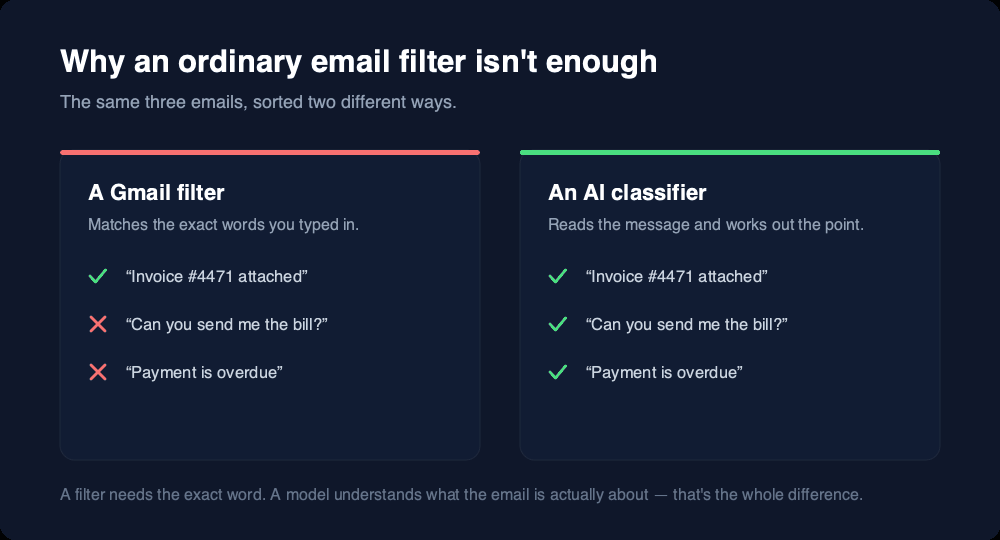
A filter needs you to predict the exact words people will use. A model reads the sentence. That’s the entire advantage, and it’s worth being honest that it’s the only advantage — filters win on speed, cost, and predictability. Use both: filters for the mail that follows rules, this for the mail that doesn’t.
Should you build this at all?
Before you spend an evening on it — this is worth doing if you get enough mail that sorting it is a real chore (say 30+ a day), if the mail falls into recognisable types, and if you’d genuinely act differently depending on the type. It’s not worth doing if you get twenty emails a day and read all of them anyway. You’d be automating a task that costs you three minutes.
One firm recommendation, and I’d ask you to take it seriously: do not let it send anything. Some published templates auto-reply to whole categories of mail. That is a fast route to a confidently worded, completely wrong message going out under your name to a customer. Drafts cost you one click and remove the entire class of problem.
How the whole thing fits together
Before building anything, it helps to see the shape of it. There are only four moving parts, and the rest of this guide is just filling them in.
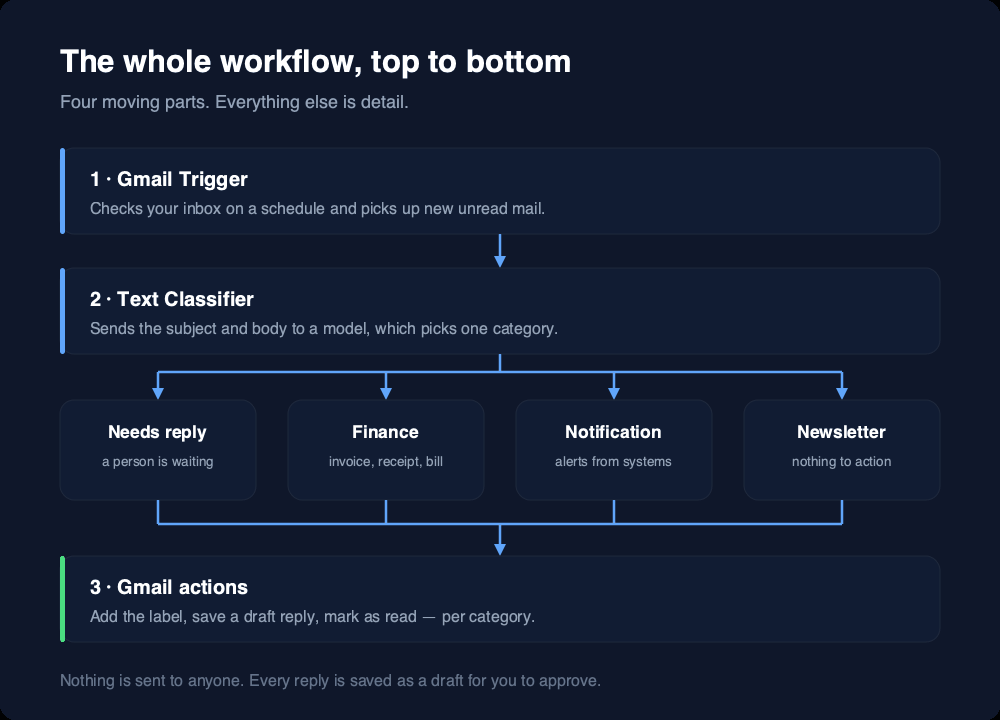
Note what we are not using: the AI Agent node. n8n has one, and it’s the right tool when you want the AI to choose between several actions on its own. For a first build that’s a liability — an agent that can pick its own tools can also pick the wrong one, and debugging it is much harder. We’ll use the Text Classifier instead. It has exactly one job: read the text, pick one category. One job means one thing to check when it misbehaves.
What you need before you start
- An n8n account or instance. The hosted trial is the quickest way to follow along. If you’d rather own the whole thing, the Docker setup guide gets you a permanent instance with unlimited runs.
- A Gmail account you’re willing to experiment on. A secondary account is ideal for the first attempt.
- An API key from an AI provider — OpenAI and Anthropic both work and both take a card. Put five dollars on it; that will last you a very long time at these volumes.
- About an hour, and a bit of patience for the Google permission screens.
One note on those keys before you paste them anywhere. n8n encrypts saved credentials, which is good — but that encryption is only as recoverable as the key protecting it. If you’re self-hosting, read what happens when that key goes missing before you have twenty credentials saved rather than after.
Step 1: Decide your categories on paper first
Do this before you touch n8n. Open your inbox, look at the last fifty emails, and ask what you actually did with each one. Group by the action, not the sender.
Four to six categories is the sweet spot. Fewer and you haven’t really sorted anything; more and the model starts hesitating between near-identical options. Here’s a set that works for most people — copy it and adjust:
🔴 🟡 🟢 categories.txt
text
Needs replyFinanceNotificationNewsletter
Write them down exactly as you want them spelled. You are about to type these same words in two more places, and they have to match.
Step 2: Create the labels in Gmail — before anything else
This is the step that breaks most first attempts, so it goes second rather than last.
In Gmail, scroll down the left sidebar, click Create new label, and make one for each category on your list. Do this now, in Gmail, by hand.
Why it matters: Gmail’s API will not create a label for you on demand, and it will not accept a label by its name. It wants the label’s ID — an internal string like Label_8291043771 — and it only issues those for labels that already exist. Skip this step and your workflow fails with Invalid label, which is a famously unhelpful thing to read at eleven at night. An n8n community moderator put it plainly: “the label has to be present already and the tool can only pass the label ID for that.”
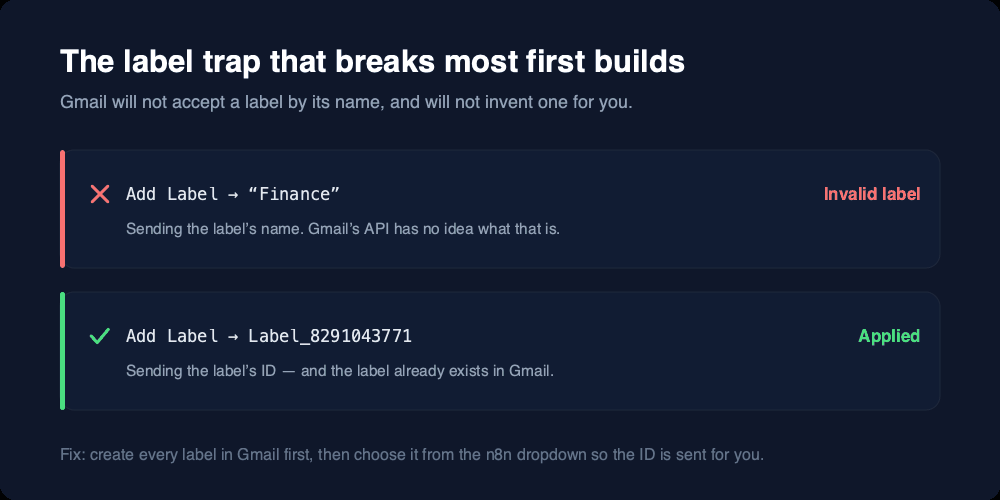
The good news is that you never have to see an ID. Once the labels exist in Gmail, n8n’s label field becomes a dropdown listing them by name, and it sends the ID for you. Create them first and the problem simply never appears.
Step 3: Build the trigger
In n8n, create a new workflow and add a Gmail Trigger node. This is the box that watches your inbox.
It will ask you to connect a Google account. n8n walks you through it; expect a few screens of Google asking whether you really mean it. Grant access and come back.
Then set these options. The names below are exactly what you’ll see on screen:
🔴 🟡 🟢 gmail-trigger-settings
text
Poll Times -> Every Hour (while testing)Read Status -> Unread emails onlyInclude Spam and Trash -> offMax Emails per Poll -> 5 (while testing)Simplify -> on
Keep the poll slow and the batch small until you trust it. A workflow that checks every minute and grabs fifty emails is a workflow that can make fifty mistakes before you’ve finished your coffee. Once it’s behaving, tighten the schedule.
There’s also a Search option that accepts normal Gmail search syntax, like from:. If you want to test on a narrow slice of mail first, this is where you do it.
Step 4: Add the Text Classifier
Add a Text Classifier node after the trigger. This is the brain of the workflow, and it needs two things.
First, a model. A smaller slot appears beneath the node — that’s where the LLM plugs in. Attach an OpenAI or Anthropic chat model, paste in your API key, and pick one of the small, cheap ones. Sorting email is not hard reasoning; the budget models do it perfectly well, and for this job they cost roughly a twentieth of what a flagship model does.
Second, the text to classify. Drag the subject and body fields from the trigger’s output into the input field. The node then sends that text to the model, which — in n8n’s words — determines its category.
Now add your categories. Each one has a name and a description, and the description is doing all the work.
How do I write a category description that works?
Describe the situation, not the vocabulary. “Contains the word invoice” is a filter written in English and will perform like one. “A supplier is asking to be paid” is a description a model can reason about. Add an example or two of the awkward cases.
🔴 🟡 🟢 category-descriptions.txt
text
Needs reply A real person is waiting on an answer from me. Includes questions, scheduling, and anything where silence would be rude.Finance Money owed or paid: invoices, receipts, payment reminders, subscription renewals. Includes "can you send me the bill?".Notification Automated messages from software I use. Deploy alerts, backup reports, password resets. Nobody expects a reply.Newsletter Marketing, digests, product announcements. Safe to read later or never.
Two options on this node are worth setting deliberately. Leave Allow Multiple Classes off, so every email lands in exactly one place. And under the handling of unmatched items, choose Output on Extra, ‘Other’ Branch rather than the default. The default is Discard Item — anything the model can’t confidently place is silently thrown away, which is a very quiet way to lose an email. The ‘Other’ branch catches those so you can look at them.
Step 5: Apply the labels
The classifier now has one output line per category, plus the ‘Other’ line. Each is a separate path down the canvas.
On each line, add a Gmail node, set the resource to Message, and choose the Add Label operation. Point the message ID at the trigger’s output, and pick the matching label from the dropdown — the one you created in step 2.
For the categories that don’t need you, add a second node after the label with the Mark as Read operation. Newsletters and automated notifications are the obvious candidates. This is the part you’ll actually feel: the inbox stops filling up with things that were never for you.
Leave “Needs reply” unread. That’s the point of it.
Step 6: Draft the replies (but never send them)
Optional, and the most satisfying part when it works.
On the “Needs reply” branch, add a Basic LLM Chain node — this is the simple “send text, get text back” node, no decisions involved. Give it the email body and a prompt describing how you write. Then add a Gmail node set to resource Draft, operation Create, and feed it the model’s output.
A prompt that produces something usable rather than something embarrassing:
🔴 🟡 🟢 draft-reply-prompt.txt
text
Write a short reply to the email below.Rules:- Under 80 words. Plain, direct, no filler.- Answer only what was asked.- If you do not have the information needed, write one sentence asking for it.- Never invent a date, price, or commitment.- No greeting flourishes, no "I hope this finds you well".- Sign off with just my first name.Email:{{ the email body }}
The line about never inventing a date or price is the one that matters. Left to itself a model will happily agree to Tuesday at 3pm on your behalf. Because these are drafts, a bad one costs you nothing but a delete — which is exactly why they should stay drafts.
Step 7: Test it before letting it loose
Don’t switch it on across your whole inbox. Work up to it:
- Use Execute Workflow in n8n to run it by hand on a handful of real emails. n8n shows you what each node received and produced, so you can see the classifier’s decision rather than guess at it.
- Check the labels landed on the right messages. Every wrong answer is feedback about a vague category description, not a broken tool.
- Tighten the descriptions and run it again. Two or three rounds is normal.
- Turn it on, but leave Mark as Read disconnected for the first few days. Sorting is reversible; hiding things from yourself is how you miss something that mattered.
- Once you’ve gone a week without a surprise, raise the poll frequency and connect the rest.
What this actually costs
Everyone says “it’s cheap” and nobody does the arithmetic, so here it is. AI providers bill by the token — a chunk of text roughly four characters long, so about three-quarters of a word. Sorting one email sends about 800 tokens in (your instructions, the category descriptions, the subject and the opening of the body) and gets about 30 back, which is just a category name.
| Model | Sorting 1,000 emails |
|---|---|
| gpt-5-nano | about $0.05 |
| gpt-4o-mini | about $0.14 |
| gpt-5-mini | about $0.26 |
| Claude Haiku 4.5 | about $0.95 |
Adding drafted replies costs more, because the model reads the full email and writes several sentences back. On gpt-5-mini that works out at roughly $0.88 per 1,000 drafts. So even a heavy inbox — a thousand emails a month, with replies drafted for the ones that need them — lands near a dollar.
The AI is not your cost. Hosting is. n8n counts one run of a workflow as a single execution regardless of how many steps it contains, so one email equals one execution — and the entry cloud plan includes 2,500 a month. Two thousand emails fits comfortably; four thousand does not. Self-hosting removes the ceiling for the price of a small server.
When it goes wrong
Why do I get “Invalid label” or “InvalidArgument”?
The label doesn’t exist in Gmail yet, or the workflow is sending a name where Gmail expects an ID. Create the label by hand in Gmail, reopen the n8n node, and re-pick it from the dropdown so the field refreshes. This is step 2, and it accounts for more failed first builds than everything else combined.
Why is it putting emails in the wrong category?
Almost always the descriptions, not the model. Two categories that overlap in meaning will produce coin-flip results — “Finance” and “Notification” both cover an automated payment receipt unless you say which one wins. Look at the specific email that went wrong, work out which description it also matched, and add the deciding sentence to one of them.
Why are some emails vanishing without a label?
They’re being discarded. When the classifier can’t confidently place an item, its default behaviour is to drop it. Switch the unmatched-item option to Output on Extra, ‘Other’ Branch and attach a label to that branch — the contents of ‘Other’ are also the best possible list of what your categories are missing.
Why did it process the same email twice?
Because it was still unread when the next poll came round. The trigger’s default is unread mail, so anything you haven’t marked as read is fair game every hour. Adding a Mark as Read step at the end of each branch closes the loop.
Why is nothing happening at all?
Check the workflow is Active — a saved workflow is not a running one, and the toggle is easy to miss. If it is active, check the Executions tab: an empty list means the trigger never fired (usually a filter that’s too narrow, or no unread mail), while a list of red entries means it fired and something downstream failed. Those two problems have nothing in common, so find out which one you have before changing anything.
Watch someone build one
If you’d rather see the canvas than read about it, these walkthroughs cover the same ground. Node names and menus shift between n8n versions, so treat any specific click as approximate and use the concepts above as the map.
- Build an Email AI Agent in 10 Minutes — n8n Tutorial for Beginners — the fastest end-to-end version.
- I Built an AI Agent to Manage my Gmail (free n8n template, no code) — closest to this build, with a template you can import.
- n8n Quick Start Tutorial: Build Your First AI Agent — start here if the n8n interface itself is new to you.
- n8n AI Agent Tutorial for Beginners — Step by Step — a slower, more thorough tour of the AI nodes.
There’s also an official n8n triage template worth reading as a comparison. It’s more ambitious than this build — five categories, several agents, Slack notifications — and it automatically sends replies for two of its categories. Import it if you like, but I’d disconnect the sending before you do.
Where to go next
Once this is running, the interesting extensions are all small. Route “Needs reply” into a task list so nothing stalls at the label. Send yourself one daily digest instead of watching the inbox. Add a category for the one type of email that genuinely can’t wait, and have it ping your phone.
The pattern generalises further than email, too — a trigger, a classifier, and a branch per outcome is the shape of most useful automations. More of them are in the AI Workflows section, and if you’d rather own the machine this all runs on, start with Self-Hosting.
Built this and hit something not covered here? Send me the exact error and what you’d just changed — I’ll add it to this guide and credit you.
Sources
- n8n docs — Key concept glossary (definitions of agent, node, trigger, workflow, credential)
- n8n docs — Text Classifier node (categories, ‘Other’ branch, multiple classes)
- n8n docs — Gmail Trigger node (poll times, read status, filters)
- n8n docs — Gmail node (message, label and draft operations)
- n8n community — Creating & adding labels in Gmail (the label ID requirement)
- n8n pricing (plan limits and the definition of an execution)
- OpenAI API pricing and Claude API pricing (the cost table)


Leave a Reply